A Wi-Fi QR at Your Venue: What to Check Before Displaying It
Published by Creativall QR · Updated 2026-10-15
A Wi-Fi QR can spare visitors from typing a network name and password. At a cafe, reception desk or event, that convenience is useful only if the code describes the correct guest network and the venue is comfortable displaying its access details. The QR is a way to share information; it does not configure or secure the network for you.
Use a guest network you intend to share
Before generating a code, confirm the exact network name and current credentials with the person who manages the venue's Wi-Fi. Use the guest access intended for visitors, rather than exposing an internal or staff network. A QR can make credentials easier to obtain, so place it where the intended audience can see it and treat a public sign as public information.
If the guest network uses a different access flow, such as a web sign-in page, test that flow. A QR containing a network name and password may not complete every extra step automatically. Device behavior also varies, so the sign should not promise universal one-tap access.
Give visitors enough context
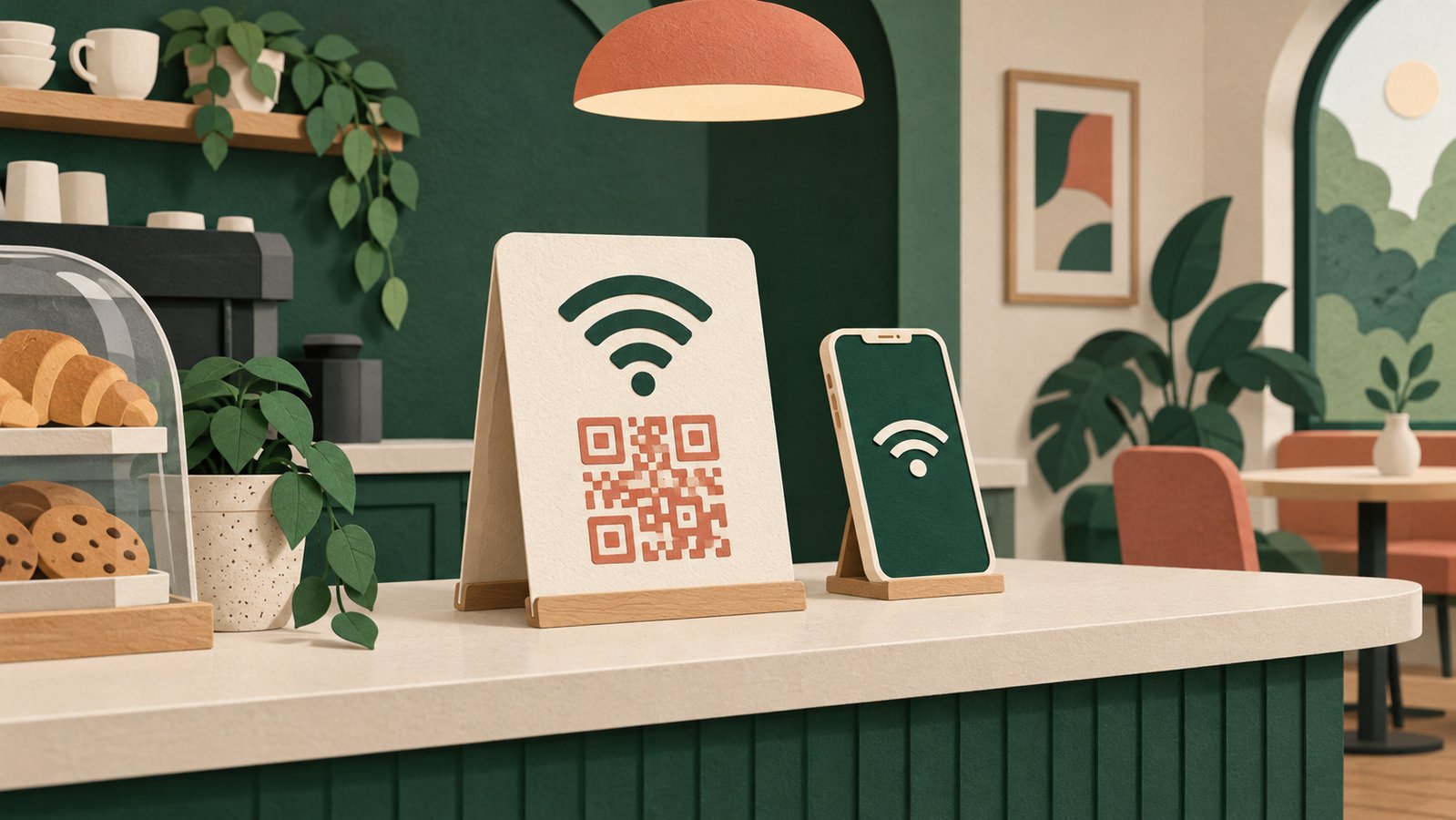
Label the sign “Guest Wi-Fi” and show the venue name nearby. A lone pattern on a wall gives people little reason to trust or use it. If you display a written password as a fallback, verify that it matches the QR. If you choose not to print the password openly, ensure staff can help guests who cannot scan.
Put the sign near a natural point of help, such as reception or a table notice, without crowding it with several unrelated codes. The person using it should be able to identify which code is for connectivity and whom to ask if it fails.
Test after changes, not only before launch
Generate the code from the actual guest network details, then test the final exported artwork on the physical sign. After changing the Wi-Fi password or network name, create and replace the displayed code promptly. An old print can remain visually perfect while carrying obsolete information.
Try a normal visitor path: notice the sign, scan it with a compatible phone, connect, and open a page. If a captive portal appears, finish the required flow. A successful scan alone is not proof of working internet access. Keep a simple record of where printed copies are posted so staff can replace all of them when credentials change.
Separate convenience from measurement
The number of scans, if measured by a particular system, is not the number of people who connected or the number who stayed. A Wi-Fi QR may encode connection details directly without opening a web page, so a website analytics dashboard may not see the interaction at all. Evaluate the guest experience through practical checks and support questions, not assumed conversion data.
A useful Wi-Fi QR is a small part of a maintained guest access process. Give it a clear label, a shareable network, a tested fallback and an owner for updates.
Related reading: https://qr.creativall.com/?page=article&slug=qr-code-not-scanning-checklist&lang=en
QR types: https://qr.creativall.com/?page=types&lang=en
Sources for device sharing and guest-network considerations: https://support.google.com/android/answer/9075847 and https://consumer.ftc.gov/articles/how-secure-your-home-wi-fi-network