QR Code Not Scanning? A Practical Troubleshooting Checklist
Published by Creativall QR · Updated 2026-10-11
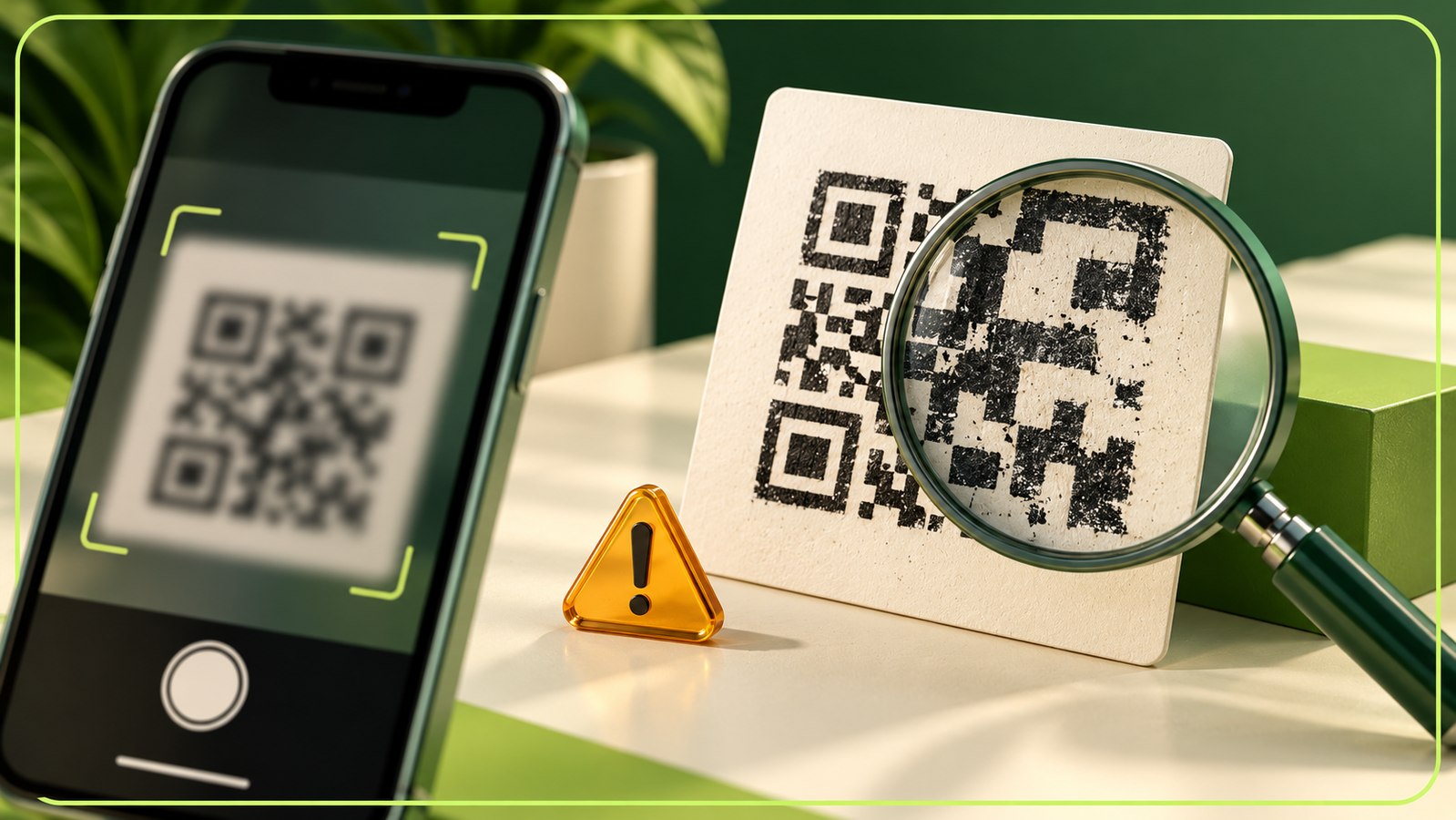
When a QR does not work, separate two problems: a phone may be unable to read the pattern, or it may read the pattern successfully and then open an unavailable destination. Fixing the artwork will not repair a broken URL, and changing a web page will not repair a blurred printed pattern. Use the following checks on the exact file you plan to share.
1. Check what the QR actually contains
Scan the exported image and inspect the destination shown by your scanning app before opening it. Compare that address with the one you intended to share. A typing error, missing path or incorrect contact number can produce a readable QR that sends visitors to the wrong place. In this workspace, a static website QR stores the supplied URL directly. A saved dynamic QR stores a platform link that resolves to the saved destination.
For a dynamic link or hosted business card, save the project before downloading its final QR. An unsaved preview is a sample, not a published card. When editing an existing project, keep its identifier if you want existing printed copies to continue reaching that record. Check the downloaded file again after an edit rather than assuming it contains the address you expected.
2. Open the destination directly
If the scanner shows the correct URL but the page fails to open, enter the same URL in a browser. Check whether the destination is available without your own logged-in session. A QR pointing to a private file or account page may work for its creator while asking visitors to sign in. A deleted resource, paused dynamic link or expired destination also needs attention at the destination rather than in the pattern.
A WhatsApp or phone QR additionally depends on a correct international number and the visitor's device applications. Opening a conversation destination is different from sending a message. Test that the intended account opens, not just that the QR reader recognizes a URL.
3. Use clear contrast
Start with a dark pattern on a plain light background. Avoid a background photograph, a strong gradient through the modules or a light foreground that blends into the paper. Screen brightness, lighting, glare and a printer's color output can change how easily a camera separates the pattern from the background. Check the printed result rather than relying only on a bright monitor preview.
4. Keep the border clear
The blank area around the pattern is called the quiet zone. DENSO WAVE specifies a four-module margin on every side of a standard QR symbol. A module is one of the small square units in the pattern; four modules does not mean four screen pixels. Keep nearby text, crop marks, decoration and the edge of a photograph outside that area.
When you place a QR in a business card layout, do not crop its clear border to fit more content. If your print designer adds space, keep the added area plain and consistent with the QR background. Inspect the final PDF or printed proof after the artwork has been resized or cropped.
5. Compare a version without a logo
A center logo covers part of the pattern. Error correction helps a reader recover damaged information, but it is not a guarantee that any logo or placement will work. Compare a test QR with no logo using the same destination. If that reads more consistently, reduce the logo or simplify the artwork around it.
The studio provides a center-logo size control and uses high error correction. Those settings still need a real output test. A logo file with a large white or transparent border can look small even when the inserted image area is large, because the visible mark occupies only a fraction of the file. Use a clean source file that does not include unnecessary empty space.
6. Test the actual printed size
A code that scans on a large screen may fail when it is reduced for print. Longer content can produce a denser pattern, leaving smaller modules at the same overall size. Give the QR enough space for its intended viewing distance, paper, printer and phone cameras. There is no single printed size that guarantees success for every use.
Export SVG when the print designer needs scalable artwork, or use a PNG with enough resolution for its final placement. Enlarging a small screenshot cannot restore detail that was lost in the screenshot. Test a printed sample at its intended size with more than one phone and under realistic lighting.
7. Test the file visitors will receive
Messaging apps and social platforms may resize or compress an uploaded image. Test the image after it has passed through the channel you plan to use. Also test the code after it is placed in the final design, not only while it is separate from the artwork. Keep a copy of the final file and its expected destination so future revisions can be compared.
A short pre-publication check
Confirm that the reader recognizes the final code, shows the intended destination and opens that destination without requiring the creator's account. For a contact card, try the call button and contact download as separate checks. For a dynamic QR, verify that the saved record is active. One successful scan is useful evidence, but it does not establish that every device, print size or lighting condition will work.
Source for the quiet-zone requirement: DENSO WAVE, https://www.qrcode.com/en/howto/code.html
Source for module-size and scanner considerations: DENSO WAVE, https://www.qrcode.com/en/howto/cell.html