A Digital Business Card People Can Actually Use: A Review Checklist
Published by Creativall QR · Updated 2026-10-17
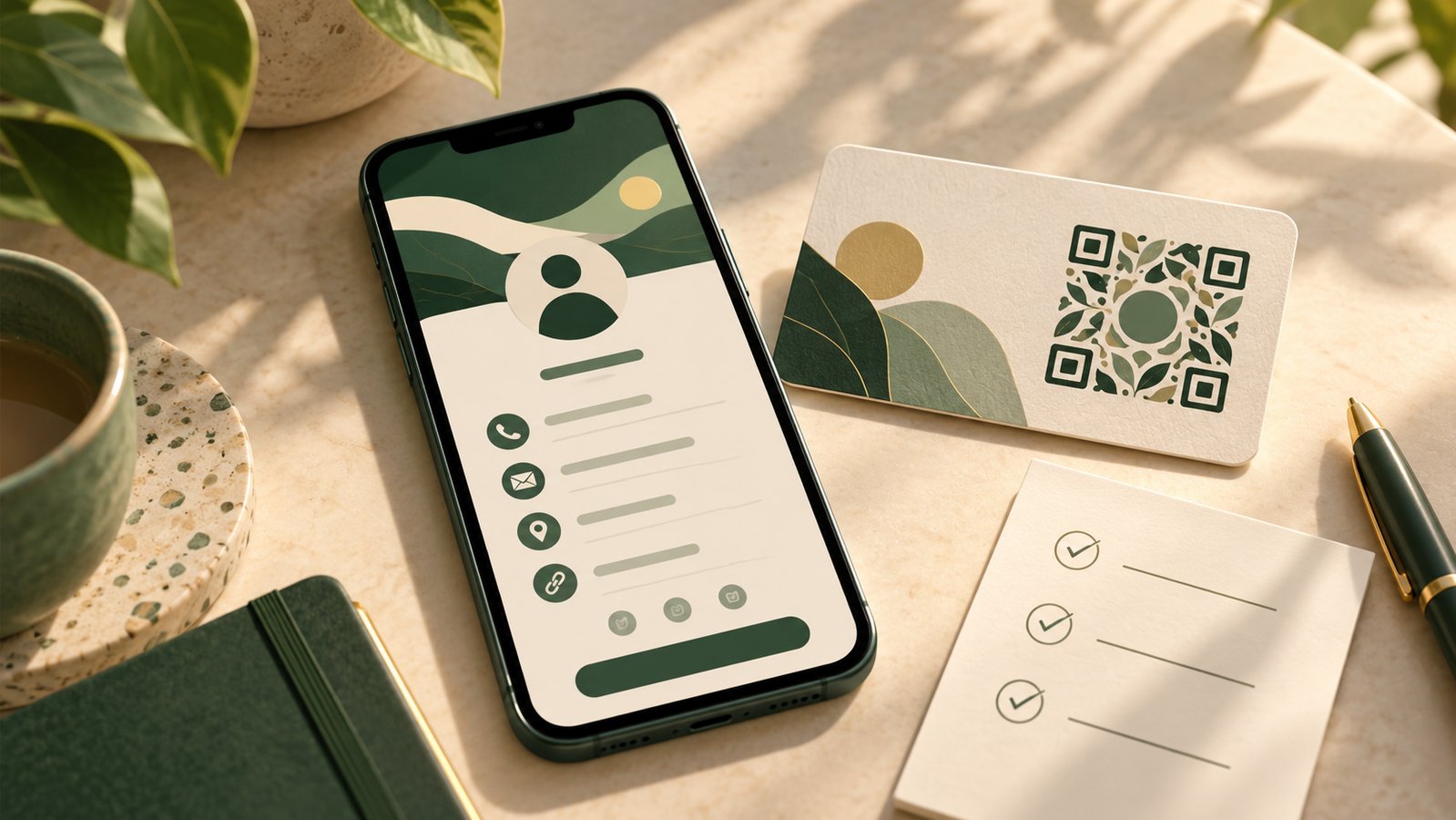
A digital business card is easy to fill with fields. It is harder to make those fields useful to a person who met you for only a minute. Before printing its QR or sending its link, review the page as a recipient would: can they recognize you, choose a contact route and understand what happens next?
This checklist applies to a hypothetical consultant preparing a card for an event. It is a review method, not an account of a real customer or an observed conversion rate.
Confirm identity first
Open the public card on a phone without signing in. Check that the name, role and organization are visible near the top. A portrait or card image may help, but it should not be the only place important text appears. A recipient may use a screen reader, have images blocked or simply need to copy the name.
Make sure the public card identifies the same person named on the printed card or badge. If a team reuses one template, check every individual page before distribution.
Test every contact action
Tap the phone, email, website and messaging links that you choose to show. Verify that each reaches the intended destination and that the label describes it accurately. If a “save contact” option is available, download and inspect the contact file; confirm the number and email that will be stored.
Offer useful alternatives when possible. A visitor may prefer an email to a phone call, or may be using a device without your preferred messaging app. Do not present a broken or empty social profile merely to make the card look complete.
Decide what should be public
Anyone with the QR or link may reach a public card. Review each phone number, email address, image and location before publishing. Use professional contact details where appropriate, and remove information that the person did not intend to share broadly. If a card belongs to a staff member, ask that person to review the public result.
Plan for changes
Store a record of where the QR was printed and which page it opens. When a role or number changes, update the public page and test the old printed code. If you move domains, keep the former address working for cards already handed out.
Finally, scan the real printed card under ordinary lighting. A good digital page cannot help if the pattern is too small or the printed contrast is weak. The whole handoff—from paper to page to contact action—needs to work.
Related reading: https://qr.creativall.com/?page=article&slug=team-vs-personal-digital-business-cards&lang=en
Digital business card tool: https://qr.creativall.com/?page=digital-business-card&lang=en