Calendar Event QR Codes: Check the Details Before Guests Save
Published by Creativall QR · Updated 2026-10-31
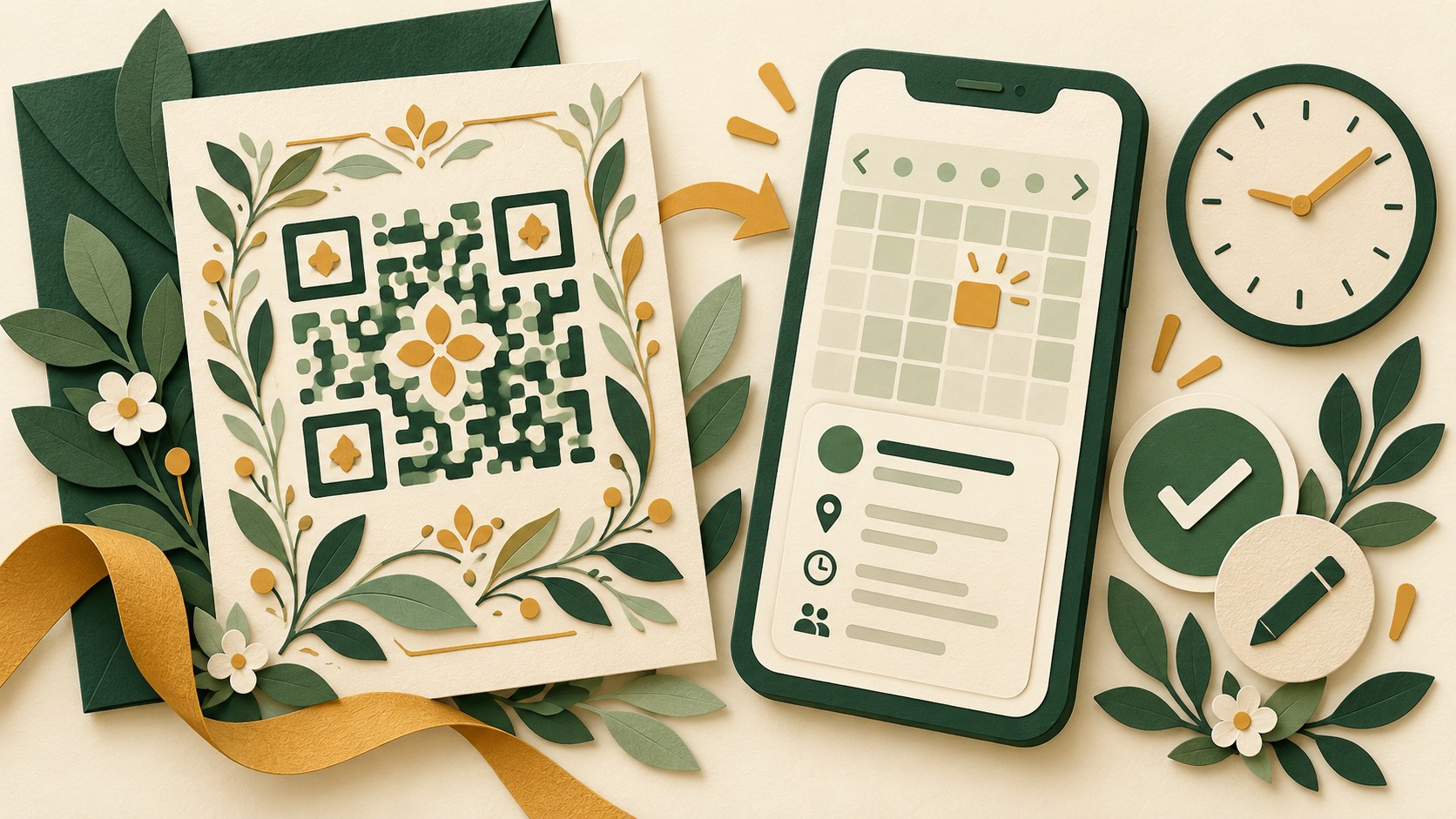
A calendar QR can help a guest create a personal reminder, but a saved event is only as useful as its details. A wrong start time or vague location can turn a convenient shortcut into an avoidable problem. Review the event as something a person will save and use later, away from the original invitation.
This checklist covers event information and device testing. It does not assume that every calendar QR creates a subscription or automatically updates an event after someone saves it.
Write a complete event brief first
Record the event name, date, start and end time, intended time zone, location and organizer contact route. Decide whether arrival time and programme start are different. A title such as “Workshop” may be hard to recognize among other calendar entries; include enough context without making it unwieldy.
For an online event, use the intended joining page and explain any access requirements. Do not place private meeting credentials into publicly distributed material without checking who should receive them.
Make the time zone explicit
Check the event in the organizer's local time and in another time zone if guests may travel or join remotely. Do not assume that a time which looks correct on the creator's phone will be interpreted the same way elsewhere.
Calendar data formats can represent dates and times in different ways. The iCalendar standard describes local, UTC and time-zone-related values; the important practical step is to inspect the event your tool produces and how your target apps display it. Reference: RFC 5545 — https://www.rfc-editor.org/rfc/rfc5545
Test the saved result
Scan a sample using the devices and calendar applications available to your team. Review the proposed event before saving it to a test calendar. Check the title, start, end, location, description and any web link. Remove test entries through your normal calendar workflow afterward.
If a device cannot import the result, provide a readable event page with the essential details. The invitation should remain useful even when the calendar shortcut is unavailable.
Explain what happens when plans change
A one-time imported event may remain unchanged when the organizer edits the original. A subscribed calendar follows a different workflow. Establish which experience you are offering before promising automatic updates.
Imagine a fictional talk moving to a new room. Updating a webpage does not prove that everyone who saved an earlier calendar file now has the new room. Keep the authoritative event page current and communicate material changes through the organizer's established channels.
Approve the final invitation
Check the printed date and time against the saved event. Keep the organizer's contact route and an ordinary event-page address visible. Scan the actual print, not just a preview on your monitor.
Related reading: match your QR invitation to its destination — https://qr.creativall.com/?page=article&slug=qr-call-to-action-expectation&lang=en
A calendar QR should reduce transcription work while preserving the guest's ability to review the details. Treat a successful scan as the start of the check, not proof that the reminder is correct.